Settings Guide
Configure OrderFlow for your store.
1. Overview
Open Settings in OrderFlow to see the Settings overview. Settings are grouped into Order page & access, Catalog & ordering rules, Communications, Storefront look, Integrations, Data & privacy (collapsed; select Show options) and Plan. Every link opens its own page: Order page settings (the order page switch, page content, buyer eligibility, B2B settings and store integration); Product sync and ordering rules (the Catalog and ordering page: product sync, new buyer welcome, category tiles, order minimum, matrix view, minimum order quantities and price display); Notifications and reminders; Email templates; Email branding (your logo, colours and company details in buyer emails); Branding; Integrations (Google Analytics 4 and Shopify Flow); Data export and deletion (under Data & privacy → Show options); and Plans and billing. Use the back arrow to return to the overview. Old links to a settings tab still open the right page.
Notification emails, reorder reminders and the weekly digest have their own Notifications page: Settings → Communications → Notifications and reminders.
Email templates have their own page too: Settings → Communications → Email templates.
Every settings page with fields (Order page settings, Catalog and ordering, Notifications, Email templates, Email branding and Integrations) uses Shopify's save bar: it appears at the top of the admin as soon as you change something. Click Save to apply all your changes at once, or Discard to go back to the saved values. While there are unsaved changes, the admin keeps you on the page until you save or discard. Actions that run immediately — product sync, minimum-quantity rules, data export and the deletion request — never open the save bar. The Data export and deletion page has no save bar. Changes take effect immediately after saving — there is no deploy step or waiting period. The quick order page on your storefront reflects the new settings the next time a customer loads it.
The settings page uses Shopify Polaris components throughout, so the interface feels native to your Shopify admin experience. Form fields include inline validation and helpful descriptions to guide you through each option without needing to reference documentation.
If you are setting up OrderFlow for the first time, we recommend working through the sections from top to bottom. Start with Order Page Settings and Buyer Eligibility to get the basics configured, then move on to email and integrations when you are ready to expand the functionality.
2. Order Page Settings
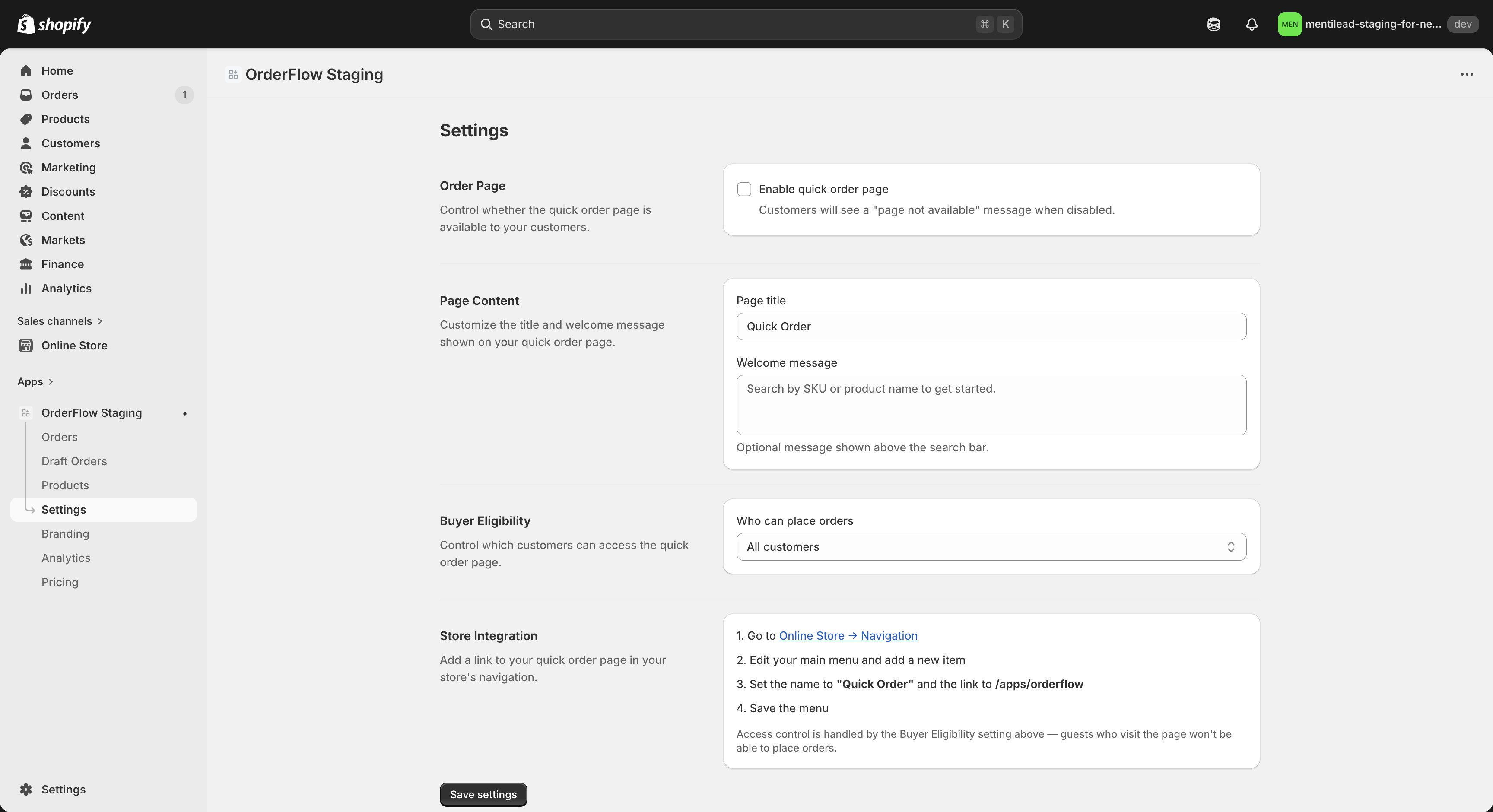
Find these settings under Settings → Order page settings. The Order Page section controls the core behavior and content of your quick order page. These settings determine whether the page is accessible and what customers see when they visit.
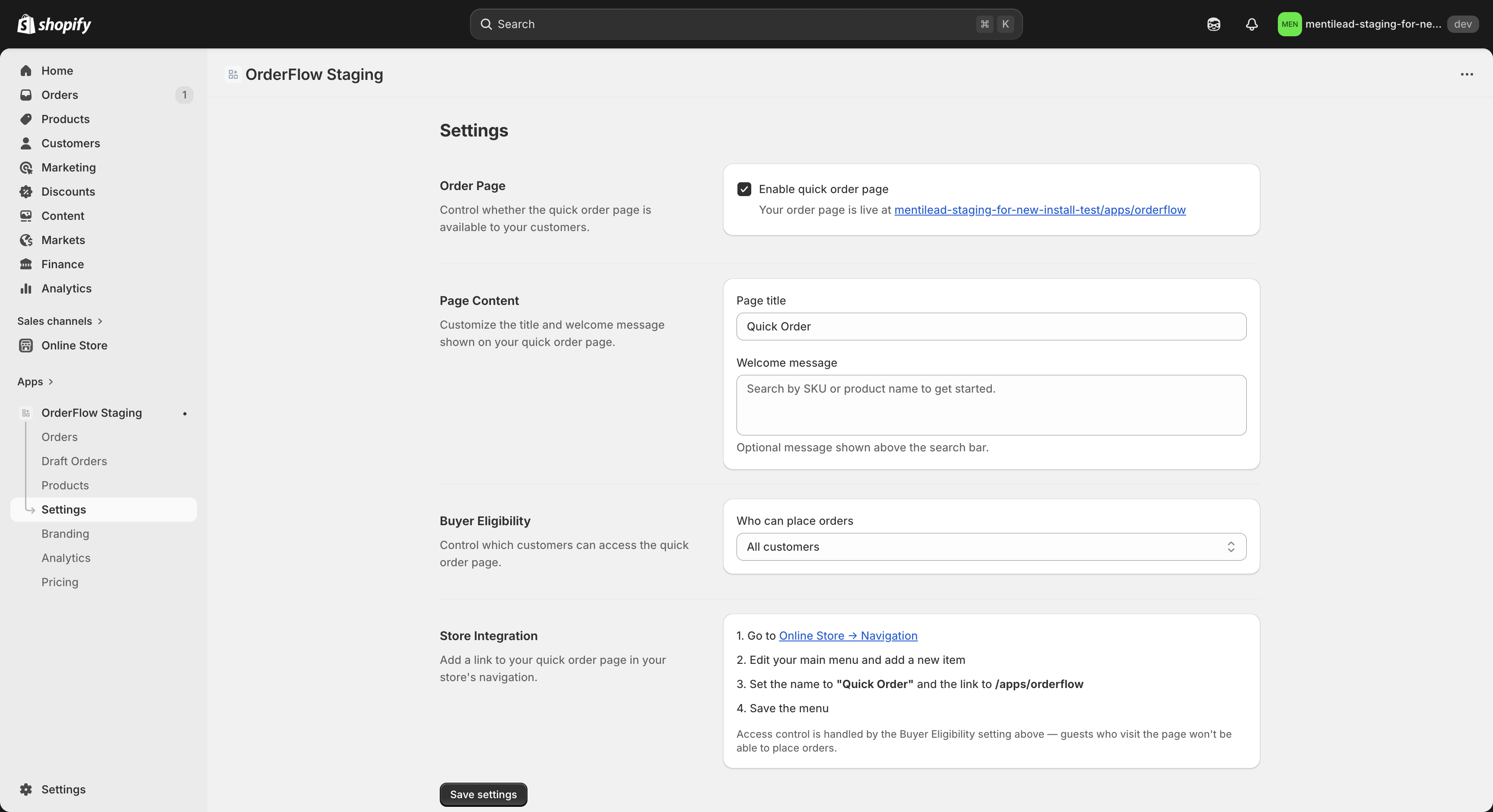
Enable/Disable toggle
Turns the quick order page on or off globally. When disabled, customers who visit the proxy URL see a "Page disabled" message instead of the ordering interface. This is useful for maintenance windows, seasonal closures, or when you want to pause B2B ordering temporarily without removing the navigation link from your store.
Page title
The heading displayed at the top of the quick order page. The default is "Quick Order", but you can change it to anything that fits your brand — "Wholesale Order Form", "B2B Portal", "Trade Order Page", or any custom text. Keep it concise and descriptive.
Welcome message
Optional text displayed below the page title and above the search bar. Use this for instructions, announcements, or helpful context. For example: "Search by SKU or product name to get started", "Minimum order: $200", or "New items added weekly — check the Products tab." Leave blank to show no message.
Default storefront language
The order page follows each buyer's language automatically: first a translated storefront URL such as yourstore.com/da/apps/orderflow, then the buyer's browser language. Supported languages are English, Danish, Dutch, Finnish, French, German, Italian, Norwegian (Bokmål), Polish, Spanish and Swedish. This setting picks the language used when neither matches (the default is English). Your page title and welcome message are shown exactly as you typed them, and order emails stay in English.
These settings give you basic control over the page's availability and messaging. For visual customization (colors, fonts, layout), use the Branding page instead.
3. Buyer Eligibility
Buyer Eligibility controls who can access the quick order page. This is one of the most important settings for B2B stores that want to restrict the ordering interface to specific customer segments rather than making it available to all visitors.
Three access modes are available:
All customers
Any logged-in Shopify customer can use the quick order page. This is the default setting and works well for stores where all customers benefit from quick ordering — for example, if your entire customer base is wholesale buyers, or if you want to offer the convenience to everyone.
Tagged customers
Only customers with specific tags can access the page. Enter one or more tags (e.g., "wholesale", "b2b", "trade") and only customers who have at least one of those tags on their Shopify customer profile will be allowed in. Customers without the required tags see a "Not eligible" message. This is ideal for stores that serve both retail and wholesale customers and want to keep the quick order page exclusive to approved buyers. Tagged customers is included on the Standard and Plus plans. On Free the option is shown but can't be selected, and an upgrade card below the selector explains what it unlocks.
B2B only
Only Shopify B2B company members can access the page. This uses Shopify's native B2B system to verify that the logged-in customer belongs to a company. Non-B2B customers see a "Not eligible" message. This option is only relevant for stores that have B2B companies configured in Shopify.
Regardless of which mode you choose, customers must be logged in to use the quick order page. Anonymous visitors are always redirected to the store's login page first. After logging in, they are returned to the quick order page automatically.
4. B2B Settings
The B2B Settings section is on Settings → Order page settings. It is visible on Standard and Plus plans. On Standard and Plus, it shows the B2B detection status — whether company-based B2B is detected (on a Shopify Plus store with B2B companies), market-based B2B is detected via Shopify Markets and catalog price lists, or no B2B is configured. B2B features require a paid plan.
On a Shopify Plus store with B2B companies, the section additionally shows approval threshold controls (Standard and Plus plans). When enabled, B2B company buyers placing orders above the threshold create a draft order for your review instead of completing checkout immediately. You approve or reject the draft order from the Orders page in the OrderFlow admin.
Require approval for B2B orders above a threshold
A checkbox that turns the approval workflow on or off. When enabled, any B2B company buyer placing an order above the threshold will have the order held as a draft for your review instead of proceeding to checkout.
Approval threshold
The amount (in your store's currency) above which orders require approval. This is the store-wide default — every B2B company on your store uses this value unless you set a per-company override (see below). Set it to 0 to require approval for every B2B order regardless of size.
Per-company overrides
To set a different threshold for a specific company, edit the Approval Threshold metafield on the company page in Shopify admin (Customers > Companies > [Company name]). OrderFlow creates this metafield definition automatically when B2B is detected on your store. Per-company values take precedence over the store-wide default for orders placed by members of that company.
When no B2B companies are detected on your store yet, an info banner appears explaining that the setting will take effect once you set up B2B companies in Shopify. The feature remains visible so you can pre-configure the threshold before onboarding your first company.
Draft orders created by the approval workflow appear on the Orders page under a "Draft orders" tab (only visible when B2B is active on your store). Each draft shows the buyer's name, company, line items, and total. You can approve it (which converts it to a real order that the buyer can check out) or reject it with a note explaining why. Draft order actions are audit-logged with the actor, timestamp, and outcome.
5. Store Integration
The Store Integration section provides your unique proxy URL and step-by-step instructions for adding the quick order link to your store's navigation. This is the URL customers use to access the ordering page.
Your proxy URL looks like your-store.myshopify.com/apps/orderflow and is generated automatically when you install the app. A copy button next to the URL makes it easy to grab the full address without manual selection.
When your store has a primary custom domain connected in Shopify, the URL uses it (for example shop.example/apps/orderflow); otherwise it uses your-store.myshopify.com. OrderFlow picks up a new custom domain the next time you open the app. If you customise the App Proxy URL in Shopify (Settings → Apps → OrderFlow), OrderFlow picks up the new path after the first customer visit to the order page and then uses it in the links shown in the app, the menu instructions and emails.
Below the URL, step-by-step instructions walk you through adding the link to your store navigation:
- Go to Content > Menus in your Shopify admin.
- Select your main menu (or any menu where you want the link to appear).
- Click "Add menu item".
- Set the title (e.g., "Quick Order") and paste the proxy URL.
- Click Save.
The proxy URL works with any Shopify theme. It is served through Shopify's App Proxy on your storefront domain, with its own header and your OrderFlow branding. To show it inside one of your theme's pages instead, add the optional OrderFlow quick order block (see Getting Started). You can add the link to your main menu, footer menu, or any custom navigation structure your theme supports.
6. Notifications
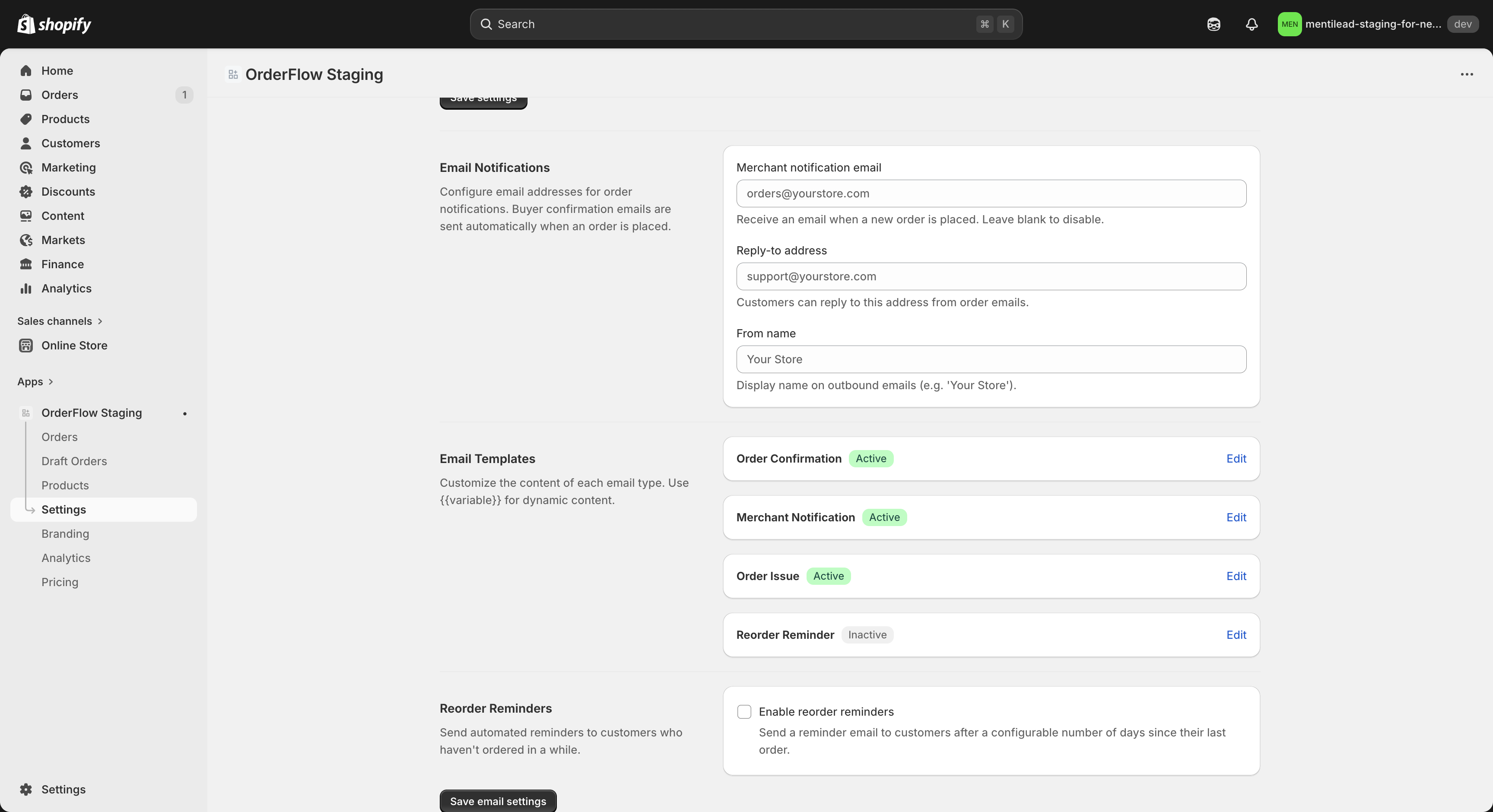
The Notifications page (Settings → Communications → Notifications and reminders) configures the addresses and sender information used for all OrderFlow email notifications. These settings apply to every email template — order confirmations, merchant notifications, issue alerts, and reorder reminders.
These settings are on the Notifications page. When you change a field, the save bar appears at the top of the Shopify admin: select Save to apply every change at once, or Discard to undo them. While you have unsaved changes, OrderFlow asks you to save or discard before you leave the page. If an address isn't valid, nothing is saved and the field shows what to fix.
Merchant notification email
The email address where you receive alerts about new orders placed through OrderFlow. You can enter up to five addresses separated by semicolons (for example orders@yourstore.com; owner@yourstore.com); each address gets its own copy of every new-order notification. This can be your personal email, a shared inbox like orders@yourstore.com, or any address you monitor regularly. You will receive a notification every time a customer completes checkout through the quick order page. OrderFlow also sends its account emails to this address: the export-ready notice, plus a few one-time account emails — a welcome after install, a reminder if your order page isn't linked from your store after two days, a nudge if no OrderFlow order has arrived a week after the link went live, a note when your first OrderFlow order comes in, and a confirmation when you choose a paid plan. Leave it blank to stop new-order emails; account emails then go to the store owner's Shopify account email (once the owner has opened OrderFlow), otherwise the most recent staff user's email (never an agency collaborator's), otherwise your store's contact email (Shopify admin → Settings → General).
Reply-to address
When customers receive an order confirmation email and hit Reply, their message goes to this address. Set it to an address you monitor for customer inquiries — such as support@yourstore.com or your personal email. This ensures customer replies reach the right person. Without one, buyer replies to order confirmations, order updates and reorder reminders go to a no-reply address, and your Dashboard suggests adding one until you do or dismiss it.
From name
The display name shown in the "From" field of outgoing emails. Use your store name or brand name so customers recognize the sender immediately. For example: "Acme Supply Co.", "Your Store Name", or "OrderFlow Orders". Keep it professional and recognizable. Punctuation such as commas and periods is sent correctly, and line breaks are removed.
Weekly digest
Every Monday OrderFlow can email you a short digest, sent only when something needs your attention: B2B draft orders waiting for approval, buyer invitations that haven't led to an order after three days or couldn't be delivered, or your Free plan nearing its monthly order limit. When it is sent it also shows your OrderFlow orders and revenue this week versus last week, and new buyers. It goes to your merchant notification email, or if that is blank, to the same address as your other account emails (the store owner's account email, else the most recent staff user's, else your store's contact email). Untick "Send me a weekly digest" to turn it off.
All OrderFlow emails are sent through Resend, a transactional email service. Deliverability is handled automatically — you do not need to configure DNS records or SMTP settings. Emails are sent from an OrderFlow domain with proper SPF and DKIM authentication.
7. Email Templates
OrderFlow includes four customizable email templates that cover the key communication touchpoints in the ordering workflow. Each template can be enabled or disabled independently, and the subject line and body text are fully editable.
Open Settings → Communications → Email templates and choose a template in the Template list. Your unsaved changes to each template are kept when you switch between templates. When anything changes, the save bar appears at the top of the Shopify admin: Save applies every changed template at once, and Discard undoes them all. If a template has a problem (an empty subject or text, a variable that email doesn't support, or a missing required variable such as {{orderName}} in order emails), nothing is saved and the field shows what to fix.
On the Free plan, every OrderFlow email ends with a short "Sent via OrderFlow" line. Standard and Plus send without it, including test emails. If a template has not been set up for your store yet, OrderFlow sends the built-in default text so order emails still go out; open this page once to create your own editable copy.
Order Confirmation
Sent to the buyer immediately after they complete checkout. Includes the order number, line items, quantities, and total. This provides buyers with a written record of their order and reassurance that it was received successfully.
Merchant Notification
Sent to you (the merchant) whenever a new order arrives through OrderFlow. Includes customer name, order details, and a link to the order in your Shopify admin. This keeps you informed in real time without needing to check the dashboard.
Order Issue
Sent to the buyer if there is a problem with their order — for example, if items become unavailable after checkout or if there is a processing error. Use this template to communicate issues proactively and maintain customer trust.
Reorder Reminder
Sent to buyers who have not placed an order within the configured reminder interval. Encourages them to come back and reorder. It is off by default. Reminders are sent only when this template is enabled and reorder reminders are turned on (see the next section).
Each template lists the variables it supports below the editor. Common ones:
| Variable | Replaced with |
|---|---|
{{orderName}} |
The Shopify order number (e.g., #1042) |
{{customerName}} |
The buyer's full name |
{{shopName}} |
Your store's name |
{{orderPageUrl}} |
Link to your quick order page (custom domain and path when set); order confirmation and reorder reminder |
{{totalPrice}} |
The order total with currency symbol |
{{companyName}} |
The B2B company that placed the order (blank for non-B2B orders) |
{{companyLocationName}} |
The company location |
{{poNumber}} |
The buyer's purchase order number, if they entered one |
{{buyerName}} |
Merchant notification: the company name, or the customer's name for non-B2B orders |
{{shippingAddress}} |
The shipping address, one line per part |
{{shippingAddress_countryCode}} |
Two-letter shipping country code, e.g. DK; also _city, _zip and _country |
{{orderAdminUrl}} |
Merchant notification only: a link to the order in your Shopify admin |
Wrap optional parts in {{#if poNumber}}…{{/if}} so they disappear when the value is empty. New stores get a merchant notification whose subject reads "New order #1042 — Company (DK)" and which ends with a link to the order in Shopify admin. Templates you already saved are never changed; copy the variables into your own template to use them.
In the body, **text** shows as bold and [link text](https://…) becomes a link. Values OrderFlow fills in for variables are always inserted as plain text: a customer name or product title that contains HTML, asterisks or link syntax appears exactly as typed and never becomes formatting or a link. Line breaks in a value are kept. The subject line is plain text. Each email also has a plain-text version for email apps that don't show formatting; there, bold text appears without the asterisks and a link appears as its text followed by the address in brackets.
On Standard and Plus, Insert image uploads a PNG or JPG under 500 KB to your Shopify Files and adds it to the end of the text as a line like , which you can move. An image shows full width on its own line. Only Shopify Files links show as images: any other link in that form stays as plain text. Images you add keep showing even if you change plan. In the plain-text version of the email, an image appears as its alt text followed by the link. The first upload may ask you to allow OrderFlow access to Shopify Files, the same prompt as the logo upload under Email branding.
Select Send test email to send the template that's on screen, including unsaved changes, to your notification email with sample values. The test doesn't save anything, and the save bar stays as it was. If no notification email is set, it goes to the address that gets account emails.
8. Email Branding
Open Settings → Communications → Email branding to give the emails your buyers receive your look: order confirmations, order issue emails, reorder reminders and buyer invitations. Your own notification emails stay plain. Email branding is included in the Standard and Plus plans; on the Free plan the page shows every option and a preview, with an upgrade card at the top.
You can set:
- Logo: upload the image in Shopify admin → Content → Files, copy its link and paste it into Logo image URL. Only links that start with
https://cdn.shopify.com/are used; PNG or JPG around 400 px wide works best. Choose Small, Medium or Large. Without a logo, your store name is shown. - Accent colour: your brand colour from the Branding page, or a custom colour. It colours links and highlights.
- Background: Light, Warm or Neutral.
- Company details: up to 600 characters, for example your legal name, address and VAT number, and up to four footer links (each must start with https://).
To add a logo, drop a PNG or JPG under 200 KB on the logo area. OrderFlow uploads it to your store's own Shopify Files (Content → Files) and fills in the link; select Save to use it. The first time, Shopify asks you to allow OrderFlow to upload files. OrderFlow only adds files and never changes or deletes yours. If your staff account doesn't have permission to manage files, ask the store owner, or upload the image in Content → Files and paste its link.
Nothing changes for your buyers until you choose Turn on branded emails in the banner at the top of the page, or save once. This applies even if you keep every setting at its default. After that, changes are saved with the save bar like on the other settings pages.
The Preview shows exactly what a buyer receives, with sample data, and updates as you type. Pick the email to preview, switch between Light and Dark, and between Desktop and Mobile. Email apps in dark mode get a matching dark version with readable text and links.
To go back to plain emails, select Reset to plain emails and confirm. Your branding settings are removed, and the next emails are plain again.
The Email templates page has a preview too, and its Send test email uses the same branding as a real email: branded once Email branding is turned on for your plan, plain otherwise.
9. Reorder Reminders
Reorder Reminders automatically email customers who have not placed an order through OrderFlow within a configurable time period. This is a lightweight way to re-engage inactive buyers and encourage repeat ordering without manual outreach.
The Reorder reminders section of the Notifications page has two controls: an enable toggle and a reminder interval in days. The interval can be set anywhere from 7 to 365 days, with a default of 30 days. For example, if you set the interval to 14 days, a customer who last ordered 15 days ago will receive the Reorder Reminder email template.
When enabled, OrderFlow checks daily for customers who have exceeded the inactive period. Only customers who have previously placed at least one order through OrderFlow receive reminders — new customers who have never ordered are not included. Each customer receives at most one reminder per inactive period to avoid email fatigue. After a buyer orders again, a new inactive period starts, and they can be reminded once more when it passes. Reminders only go to customers who crossed the inactive period within the last 7 days, so turning the feature on does not email customers who lapsed long ago.
The content of the reminder email is controlled by the Reorder Reminder template on the Email templates page (see above), which must be enabled. Customize the subject line and body to match your brand voice. Common approaches include a friendly check-in ("Time to restock?"), a promotional angle ("New items since your last order"), or a direct prompt ("Your usual order is one click away").
10. Catalog and ordering
Open Settings → Catalog & ordering rules → Product sync and ordering rules to reach the Catalog and ordering page. It keeps your product cache fresh and controls what buyers see on the quick order page, for both first-time and returning buyers.
When anything changes, Shopify's save bar appears at the top of the admin: Save applies every change at once, and Discard reverts them. If a value is invalid (for example a rate percent above 100, a category tile without a label or search query, or a minimum quantity below 1), nothing is saved and the field shows what to fix. Clearing a field and saving removes it. Product sync and the product or collection MOQ rules act immediately and never open the save bar.
Product sync
The Product Sync card, at the top of the Catalog and ordering page, shows how many variants are cached and when the last full sync finished. Sync all products starts a full refresh in the background, so you can keep working. A message confirms the start. Unsaved changes on the page are kept while it runs. While it runs, the card shows “Sync in progress since” with a running count and updates on its own when the sync finishes. The button stays disabled until then.
New Buyer Welcome
Set a welcome message that appears for buyers who haven't placed an order yet. This helps first-time visitors understand what the page offers and how to get started. Leave it empty to show the default search prompt.
You can also specify featured product IDs to highlight specific products for new buyers instead of the automatic popular products. Enter comma-separated numeric Shopify product IDs: the number at the end of the product's admin URL, for example …/products/1234567890. Anything else is rejected on save with an inline error on the field.
Category Tiles
Add browseable category tiles that appear on the order page for first-time buyers. Each tile has a label, an optional image URL (if set, it must be an https:// URL), and a search query that runs when the buyer clicks it. For example, a tile labelled "Safety Equipment" with search query "safety" would show all products matching "safety" when clicked.
Click "Add category tile" to create a new tile, and "Remove tile" to delete one, then Save in the save bar. Every tile needs a label and a search query. Tiles appear in the order you create them.
Order Minimum
Set a minimum order value in your store's currency. When configured, a progress bar appears in the cart sidebar showing how close the buyer is to meeting the minimum. This is a visual indicator only — it does not block checkout. Set to 0 or leave empty to disable.
Matrix Ordering View
Enable this to show a 2D grid view for products with multiple variant options (e.g. Size and Color). Buyers can enter quantities for each variant combination in a single grid, then add all selections to the cart at once. This is particularly useful for apparel, hardware, or any product with a size/color matrix. A grid icon button appears next to multi-variant products in search results when enabled.
Minimum Order Quantities
Set minimum order quantities (MOQ) to control how many units a buyer must add per product. Start with a global default that applies to all products — for example, a minimum of 1 and a step increment of 1. The global default is available on Standard and Plus plans.
On the Plus plan, you can add per-collection overrides by selecting a collection from the dropdown. Each collection override specifies its own minimum quantity and step increment. You can also add per-product overrides by entering a Shopify product ID — these are available on both Standard and Plus plans. Per-product rules take the highest precedence, followed by per-collection rules, then the global default.
The global default is saved with the page's save bar. Product and collection rules are managed in a dialog: Add product or collection rule, then Save rule, saves immediately; Edit changes the minimum and step; Delete asks for confirmation. On Standard, collection rules are locked, and the Per-collection MOQ rules card explains the upgrade.
On the storefront, buyers see MOQ badges on affected products (e.g. "Min: 5 · Step: 5"), quantity steppers enforce the minimum and step values, and inline errors prevent invalid quantities from being added to the cart. CSV imports and saved list loads also validate against MOQ rules automatically.
Price display rules
This is a display feature. Checkout tax is calculated by Shopify — OrderFlow never modifies it. Price display rules only change how prices render on the Quick Order page. They let you show prices inclusive of VAT/GST, exclusive of VAT/GST, or both side-by-side to different customer segments on the same storefront.
First, set the Prices in my Shopify store include tax checkbox to match your Shopify store setting (Settings → Taxes and duties → All prices include tax). OrderFlow uses this to compute the alternate amount when a rule asks for the opposite display mode.
Each rule has five fields:
- Customer tag — the Shopify customer tag to match against (e.g.
trade). Use*as the tag to apply the rule to all non-B2B buyers as a fallback. Every rule needs a tag. - Display mode — inclusive (single price with an inc. VAT label), exclusive (single price with an ex. VAT label plus a "VAT will be added at checkout" banner above search), or dual (both amounts rendered side-by-side, separated by " / ").
- Rate percent — the VAT/GST rate used to compute the alternate amount in dual mode (or to flip an inclusive price to exclusive, or vice versa). Must be between 0 and 100; otherwise the page won't save and the field shows the error.
- Label (inclusive) and Label (exclusive) — the text shown alongside each amount. Defaults to "inc. VAT" and "ex. VAT" when left empty.
Example: { customerTag: "trade", displayMode: "exclusive", ratePercent: 20, labelExc: "ex. VAT" } renders prices like £100.00 ex. VAT with the "VAT will be added at checkout" banner for buyers tagged "trade". Rules are evaluated in array order and the first tag match wins; the * wildcard is used as a fallback if no tag matches.
Rules are ignored for Shopify B2B Company members — when the buyer resolves into a Shopify B2B company context (advanced tier) or market context (basic tier), OrderFlow renders the native B2B pricing exactly as it does today. This ensures Shopify's own B2B flow always takes precedence over merchant-configured display rules.
11. Integrations
Open Settings → Integrations → Integrations. The page connects OrderFlow with Google Analytics 4 and Shopify Flow. When you change the Measurement ID or the search-term setting, Shopify's save bar appears: Save applies both at once and Discard reverts them. An ID in the wrong format is not saved, and the field shows what to fix.
Google Analytics 4
Enter your GA4 Measurement ID (starts with G-, for example G-ABC123XYZ) to track quick order page events in your Google Analytics dashboard. OrderFlow tracks page views, product searches, add-to-cart actions, checkout starts and CSV-import row counts. OrderFlow rejects IDs in other formats, such as old Universal Analytics UA- IDs. To stop tracking, clear the Measurement ID and save.
Tracking only starts after the buyer allows analytics in your store's cookie banner (Shopify Customer Privacy). The order page then loads Google's gtag.js, which sets Google's first-party analytics cookies (_ga) and sends events from the buyer's browser straight to your GA4 property. Without consent, nothing loads. If you sell to the EU or UK, enable the cookie banner in Shopify under Settings → Customer privacy. Google Signals and ad personalization are always off, and no name, email address, customer ID or order ID is sent. Mentilead never receives this data. You are responsible for your GA4 property, your terms with Google and your cookie notice.
Send buyer search terms to GA4 (off by default): when this is off, OrderFlow still sends the search event, without the search term. Turn it on only if your privacy notice covers it, because search terms can contain names or other personal data.
Shopify Flow
OrderFlow provides 4 Shopify Flow triggers that fire automatically when corresponding events happen. These triggers are shown as read-only items with Active badges on the Integrations page — they require no configuration and work out of the box.
Order Placed
Fires when a customer completes checkout through OrderFlow.
Reorder Placed
Fires when a customer uses "Buy again" from their order history.
CSV Order Placed
Fires when a customer completes checkout after importing items via CSV.
Monthly Limit Reached
Fires when a store on the Free plan hits its limit of 10 orders placed through OrderFlow per month.
Use these Flow triggers to build custom automations in Shopify Flow — for example, sending a Slack notification when a large order arrives, tagging customers who place repeat orders, or alerting your team when the monthly limit is reached so they can consider upgrading. See the Flow guide for detailed automation recipes.
12. Data export and deletion
Open Settings → Data & privacy → Show options → Data export and deletion. The page has two immediate actions and no save bar: requesting a data export and requesting deletion of your data.
Export data
Generates a downloadable CSV file with your orders, saved lists and cart sessions. The export is prepared in the background and made available as a signed download link. The file is kept for 14 days and can be downloaded again from the Recent exports list; the link in the export-ready email (sent to your merchant notification email, or if that is blank, the store owner's account email, the most recent staff user's email, or your store's contact email) expires after a few hours. Exports older than 14 days show Expired in the Recent exports list and can no longer be downloaded.
Click Request data export; a message confirms the request, and the export appears in the Recent exports list. You can request one export per hour.
Use this before making significant changes, migrating to a different solution, or as a periodic backup of your OrderFlow data. The CSV file has one section each for orders, saved lists and cart sessions, and opens in any spreadsheet application. Cells that start with =, +, - or @ are prefixed with an apostrophe so spreadsheets never run them as formulas.
Delete all data
OrderFlow automatically and permanently deletes all of your shop's data — orders, saved lists, cart sessions, audit logs, settings and uploaded or exported files — 12 months after you uninstall the app. Until then, reinstalling picks up where you left off.
To have your data deleted sooner, click Email a deletion request (or email privacy@mentilead.com from your store's account email) and uninstall OrderFlow. We run the deletion once the app is uninstalled and confirm once it's done. There is no in-app deletion button: data is only deleted after the app is uninstalled.
We recommend exporting your data before you uninstall or request deletion. Once deleted, the data cannot be restored — even by Mentilead support.